JustClock for Devin – Work Time Tracking for the Agentic AI IDE (formerly Windsurf)
Work Time Tracking for Devin, the Agentic AI IDE (formerly Windsurf).
JustClock runs inside Devin the same way it does in VS Code and Cursor, quietly logging the time you actually spend planning, delegating, reviewing and shipping work with your AI coding agents.
Devin's agents can write, test and ship code on their own, but someone still has to steer the agent command center, review every diff and own the result. JustClock keeps that human time accounted for.
Why Track Time in an Agentic IDE Like Devin?
- Clients and managers still bill and budget by the hour, no matter how many AI agents wrote the code
- Tracks the time you spend planning tasks, delegating to Devin's agents and reviewing their diffs, not just typing
- Gives you real data on how much agent orchestration actually saves on your projects
- Works per-project, so you can compare human effort across Spaces, repos and clients
Also using Cursor or plain VS Code? The Cursor page and VS Code page cover the same setup steps.
Secure by design. Non-intrusive by default.
We understand that security is paramount inside your development environment. JustClock measures time — never your work.
Data we collect
- Project name / identifier
- Active time spent in IDE
- User account identifier
What we never touch
- Your code or file contents
- Keystrokes or sensitive input
- Any other personal data
For full details, please refer to our Privacy Policy.
How to Set Up Your Devin IDE & API Key
Install the extension from the Open VSX Registry — Devin, like Cursor and other VS Code forks, pulls extensions from there, not the VS Code Marketplace.
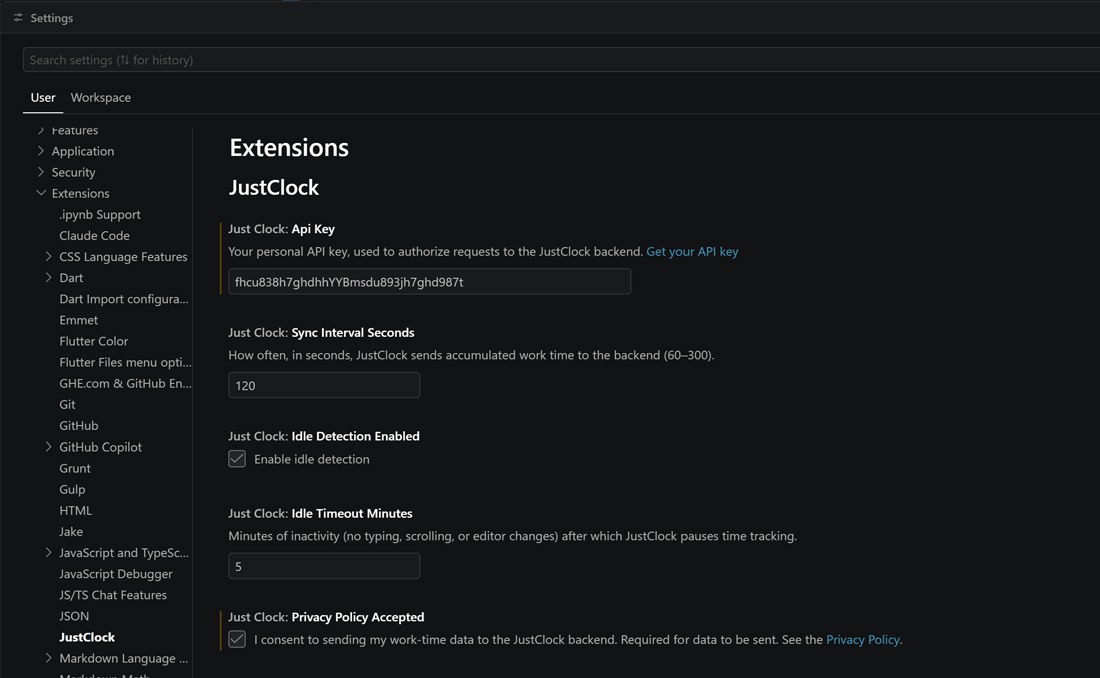
Open Settings (Ctrl/Cmd + ,) and search for "JustClock".
Click "Get your API key" — this link opens our website from inside Devin.
Devin will ask whether to open the link and add it to your trusted domains — confirm this. It's a one-time prompt, and required for the extension to reach the JustClock API.
Copy your API key from the JustClock website and paste it into Devin's settings to save.
Important: the "Get your API key" link is what triggers Devin's trusted-domain prompt for justclock.dev. If you dismiss or decline it, time data won't sync — open Settings, click the link again and allow the domain to fix it.